 There are a number of reasons why you may want to change the folder that you store the TFS Cache. It can take up “some” amount of room so moving it to another drive can be beneficial. This is the source control Cache that TFS uses to cache data from the database.
Moving the Cache is pretty easy and should allow you to organise your server space a little more efficiently. You may also get a performance improvement (although small) by putting it on another drive..
-
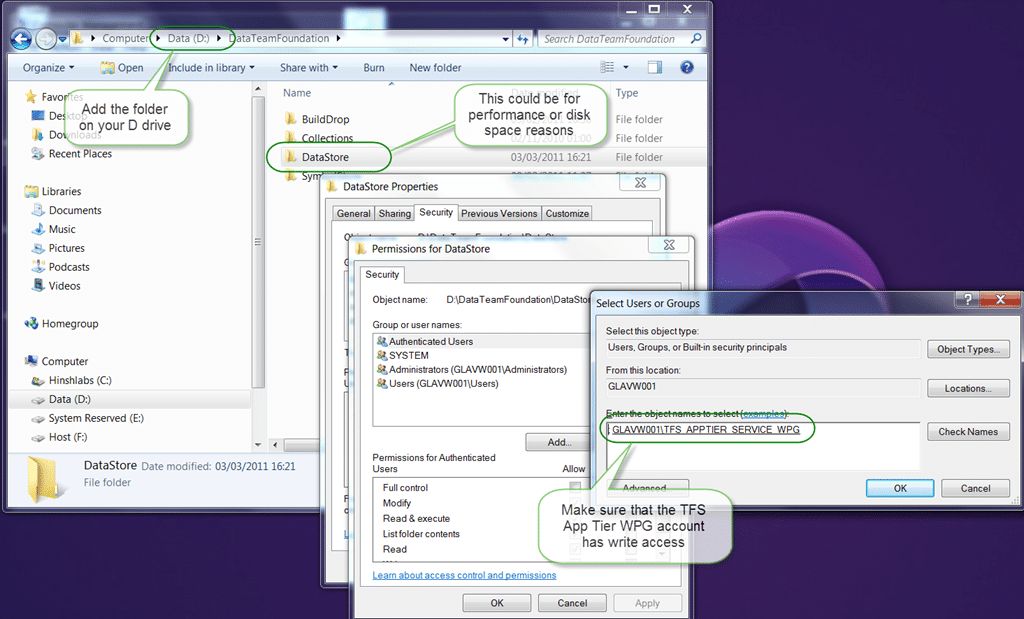
Create a new directory to store the Cache. e.g. “d:TfsCache”
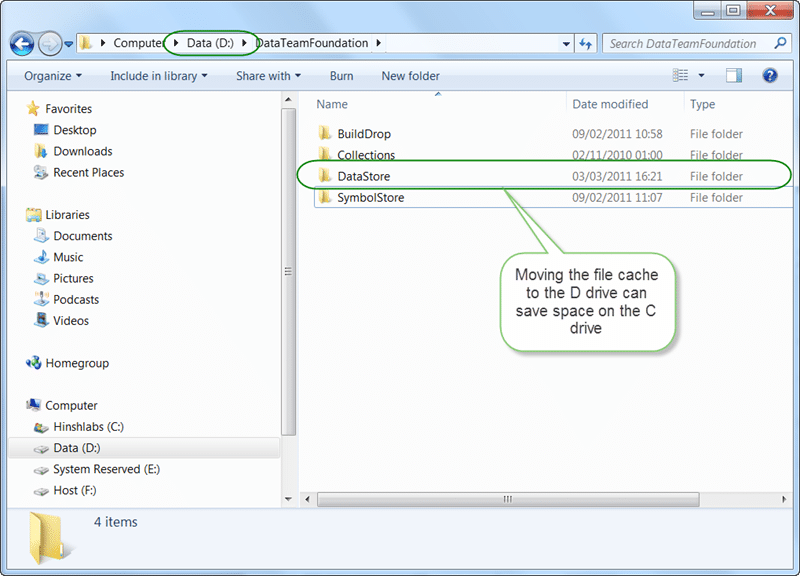 Figure: Create a new folder
 -
Give the local TFS WPG group full control of the directory
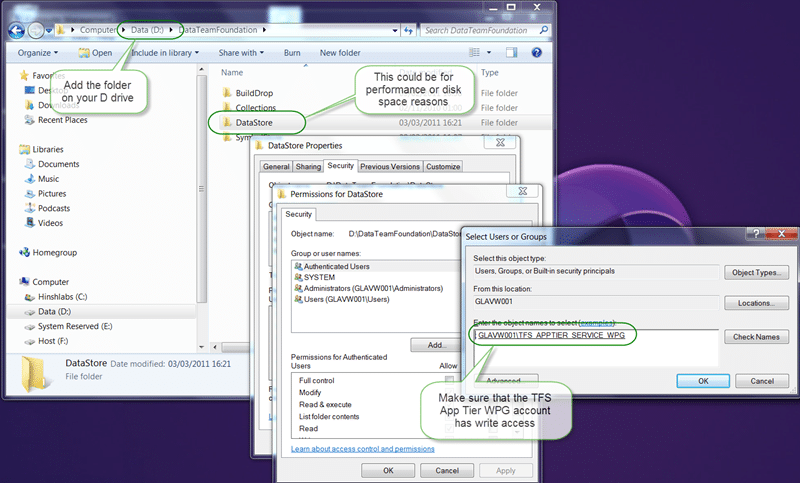 Figure: You need to use the App Tier Service WPG
 -
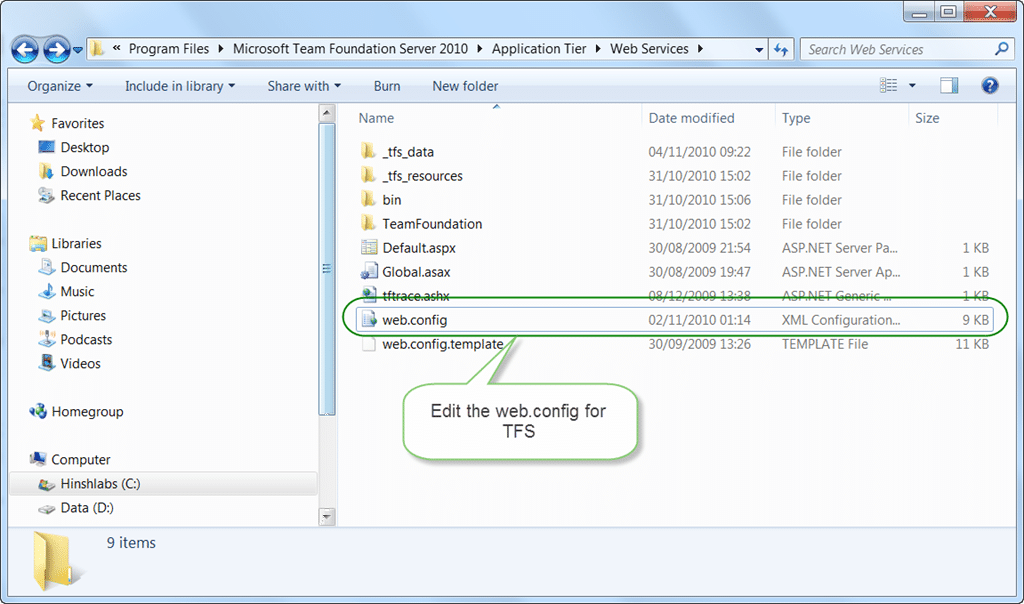
In the application tier web.config (~Application TierWeb Servicesweb.config) add the following setting (to the appSettings section).
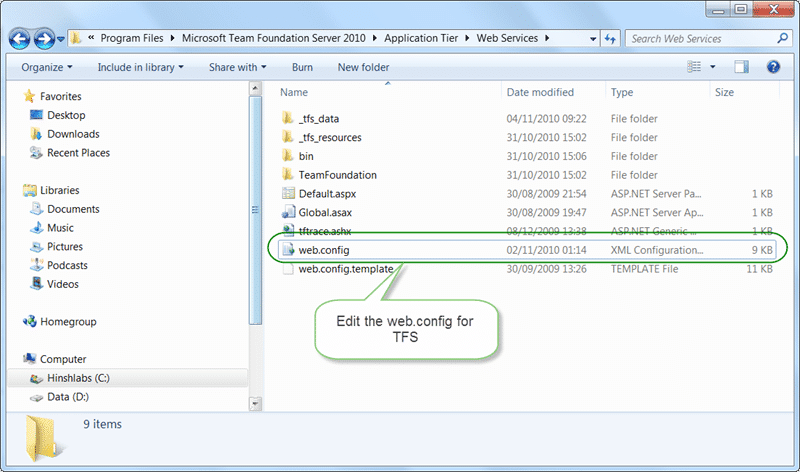 Figure: The web.config for TFS is stored in the application folder
`... <add value="D:" key="dataDirectory" /> ...**Figure: Adding this to the web.config will trigger a restart of the app pool** [](http://blog.hinshelwood.com/files/2011/05/GWB-Windows-Live-Writer-Do-you-know-how-to-move-the-Team-Foundat_DD94-SNAGHTML1c223fd.png)Figure: Your web.config should look something like this
-
The app pool will automatically recycle and Team Web Access will start using the new location.
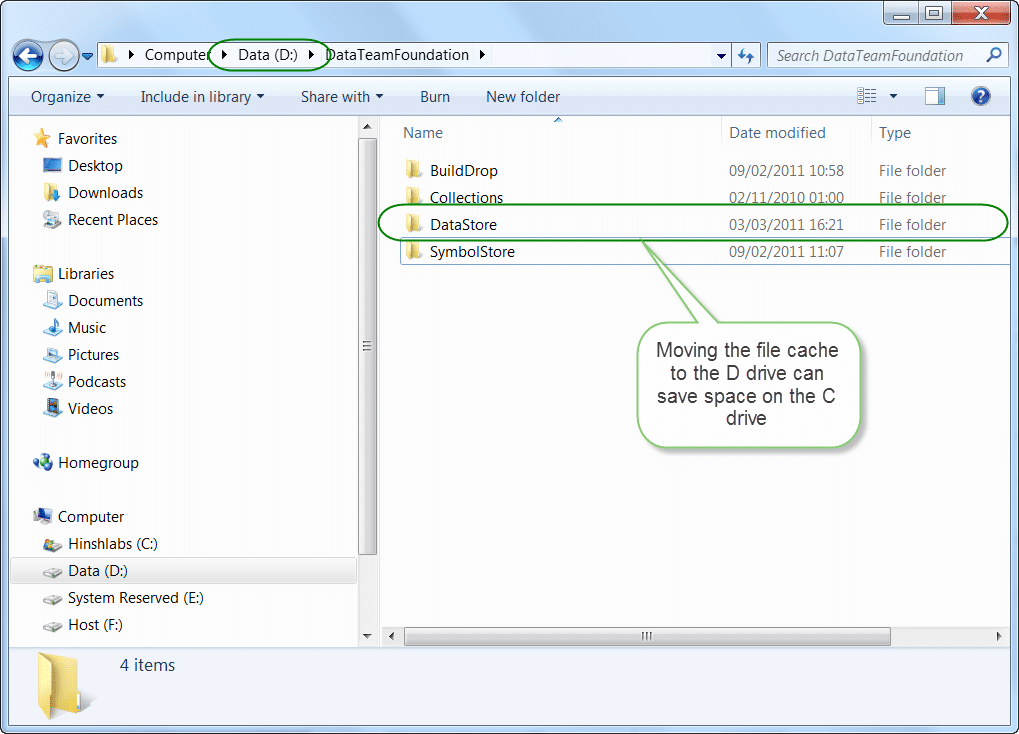
If you then download a file (not via a proxy) a folder with a GUID should be created immediately in the folder from #1. If the folder doesn’t appear, then you probably don’t have permissions set up properly.
Smart Classifications
Each classification [Concepts, Categories, & Tags] was assigned using AI-powered semantic analysis and scored across relevance, depth, and alignment. Final decisions? Still human. Always traceable. Hover to see how it applies.
What to read next
Moving OneDrive for Business files to a different drive
Step-by-step guide to moving OneDrive for Business files to a different drive in Windows without re-downloading, freeing up space and …
New un-versioned repository in TFS 2012
Explains how TFS 2012 introduced an un-versioned repository for build outputs, reducing version control clutter and offering easier storage …
Detecting agile theatre with real delivery signals
Why Most Companies Operating Models Fail in Dynamic Markets
A concise comparison of Predictive and Adaptive Operating Models, explaining why traditional structures fail in dynamic markets and how …
Don’t Manage Dependencies, Remove Them
Explains why dependencies are a sign of poor system design and outlines steps to eliminate them by aligning teams, clarifying ownership, and …
The Estimation Trap: How Tracking Accuracy Undermines Trust, Flow, and Value in Software Delivery
Tracking estimation accuracy in software delivery leads to mistrust, fear, and distorted behaviours. Focus on customer value, flow, and …
Flow of Value vs Flow of Work – Misnomer or Useful Shorthand?
Compares “flow of value” and “flow of work” in Kanban, explaining why only validated outcomes count as value and stressing the need for …
Why Outsourcing DevOps Fails, and How Real Engineering Excellence Starts With Your Team
Avoid DevOps vendor lock-in, discover how true engineering excellence starts with partnership, not outsourcing. Ready to transform your …