I recent ran into a problem where my OneDrive files were taking up too much space on my main drive and preventing Windows 10 updates on the Insider Program. This works for both OneDrive consumer application and the new OnDrive for Business beta application.
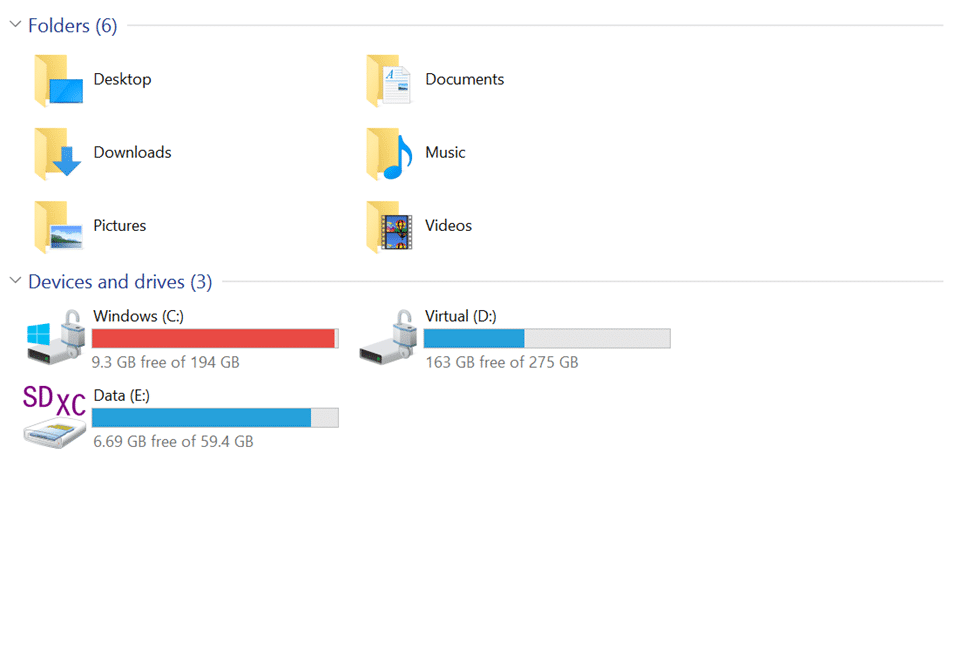
Many moons ago I had partitioned my drive so that I could limit the amount of space that my Virtual Machines use. However these days I only have a single VM that is the Brian Keller TFS demo box for… well… demos. All my other machines I run in Azure. So I tend to have more free space on the Virtual drive and less on the Windows drive these days…
My OneDrive file size is now up at 80GB+ so I really need the extra space on the C drive.
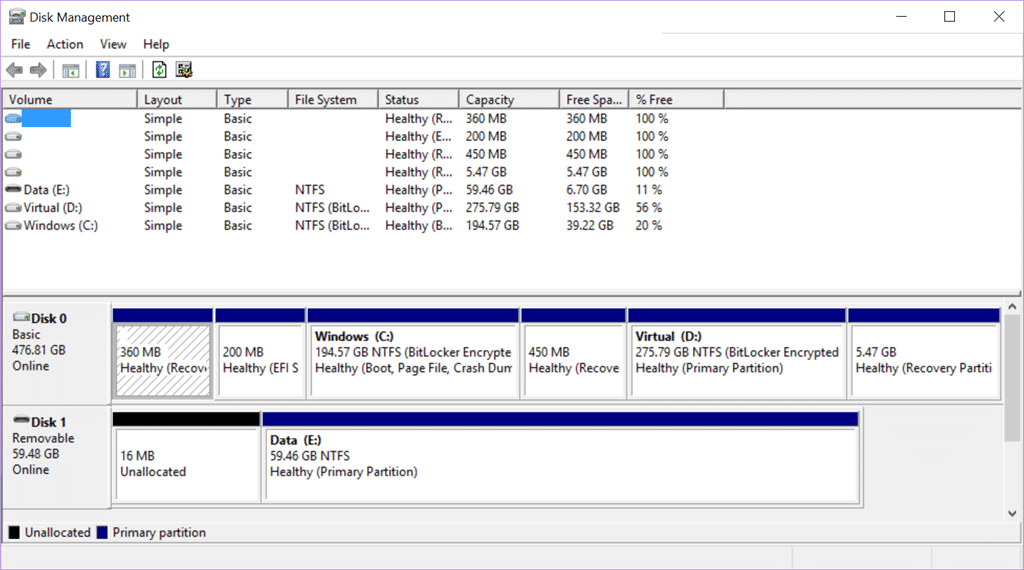
However after so long it would be difficult to resize the partitions without breaking the ability to recover my computer easily, which I like.
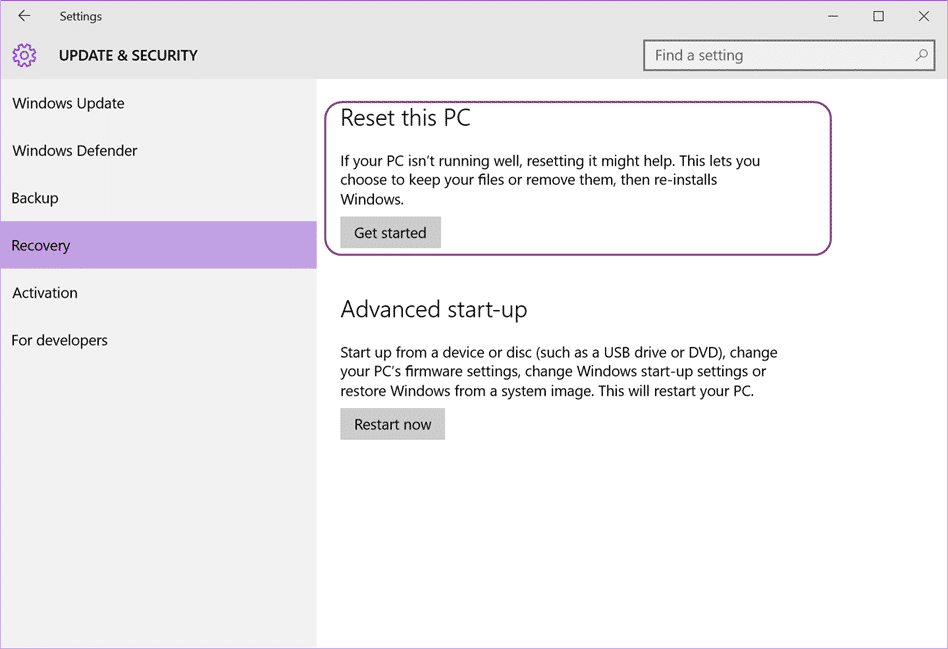
I love being able to pop into Recovery page and just reset Windows while keeping my files… awesome feature, especially if you are a Developer and incessant tinkerer and often break Windows.
So, in order to move your OneDrive location you need to first “Unlink” your OneDrive account and then relink it back to the new location. The online documentation for this says that you have to re-download all of your files, but stuff that on 80GB. What if you are on a crappy or cellular internet connection! I want to move my files to the new location and have OneDrive just fire up with all of the files there. Good this this is easy and seamless…
- First Unlink your OneDrive
You need to be online to complete this procedure. I am currently onsite with a customer that has blocked OneDrive and had to connect through my phone. OneDrive takes some time to connect if you change connection, so using the tray Exit button and then running the OneDrive Desktop App (from Start) gives it a little kick.
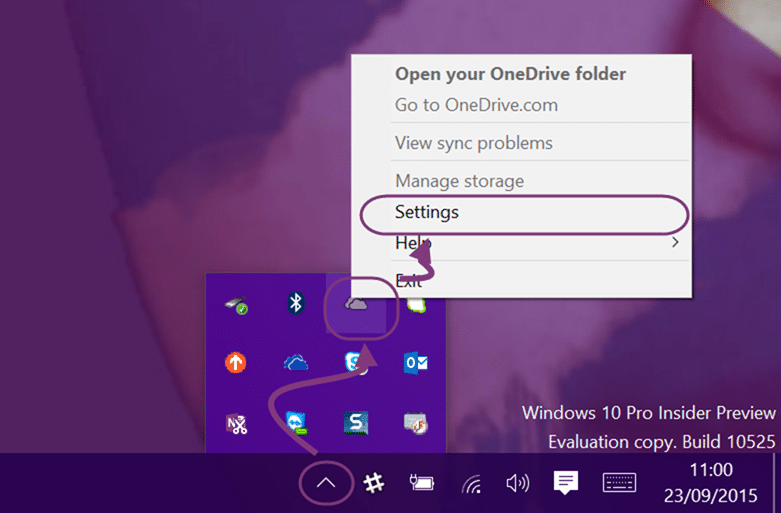 Once you are online you can open the tray menu and click Settings.
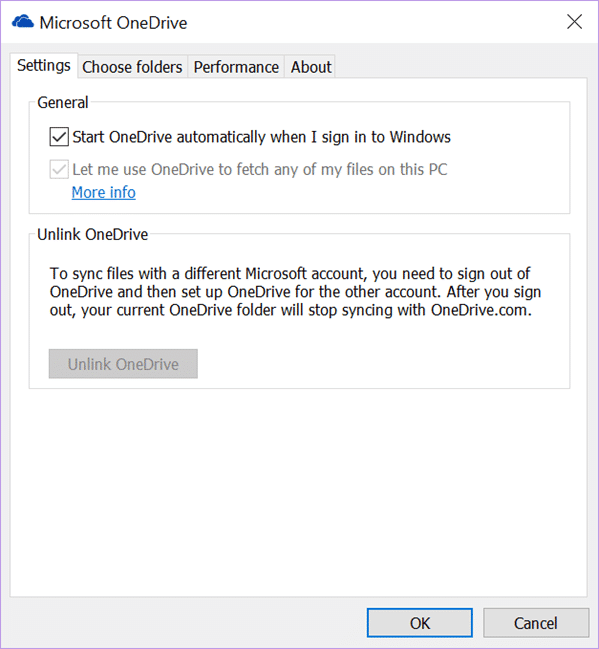 Then click “Unlink”. If your Unlink button is disabled, like above, then that means that you are not Online. You can connect to the internet and then reboot, or restart the OneDrive application.
 - Copy your files to the new location
You need to cop all of your existing files to the new location. If you don’t copy all of the files anything missing will need to be re-downloaded. As Windows copy also takes all of your file properties if you have made changes to files, then these will be synched successfully after the move.
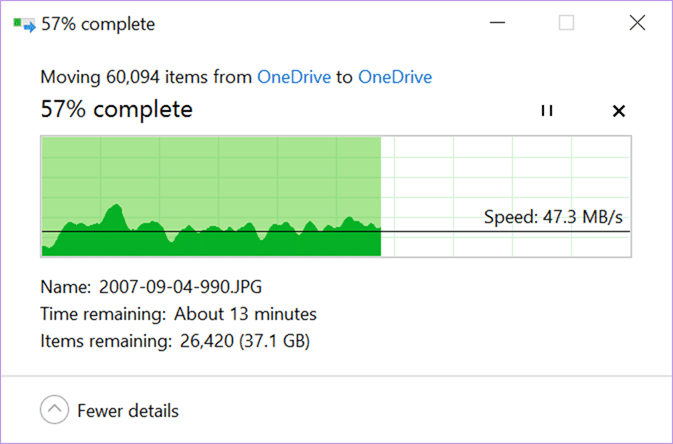 I setup a d:\Users\MrHinsh\OneDrive folder and “moved” all 80GB of my files over to the new location… this may take some time, or considerably longer depending on your drive speed. I happen to have a Surface 3 with SSD’s so it’s pretty quick for me.
You should also be mapping your Windows Special Folders to OneDrive so that you never lose a file again. - **Setup OneDrive using the OOB experience
**Now we need to setup OneDrive again but change the mapping to the new location of our files.
 Just like the first time you setup Windows OneDrive you get the out-of-box experience when you click on the OneDrive folder.
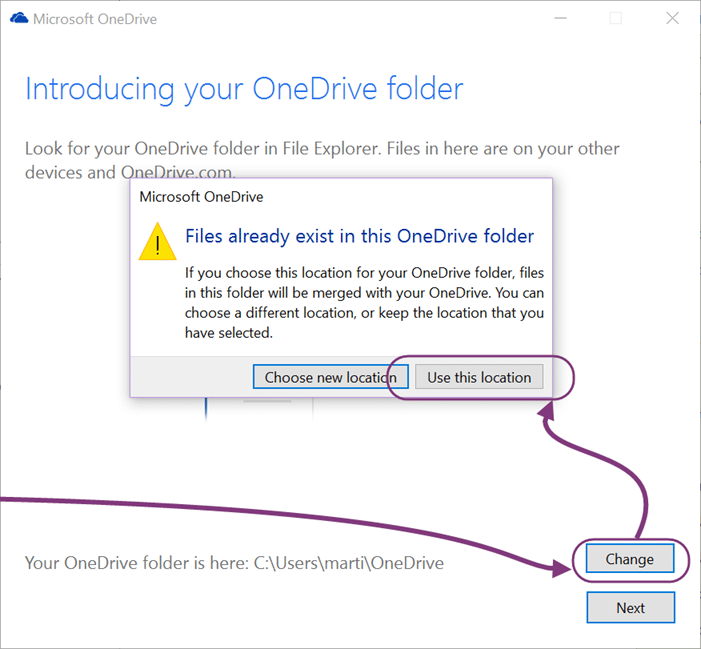 On the configuration screen click “Change” and select the new folder. OneDrive will detect that this location is already in use and you should “use this location”.
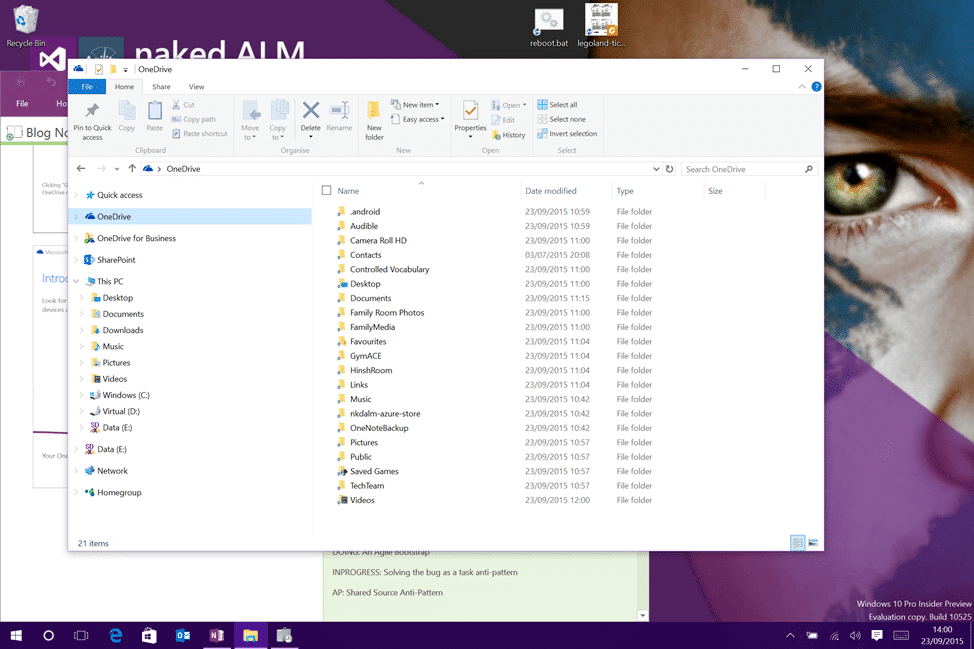
And that’s it… your OneDrive files are not in a new location, and in my case, on a new disk. That’s 80GB freed up from my Windows drive…
Smart Classifications
Each classification [Concepts, Categories, & Tags] was assigned using AI-powered semantic analysis and scored across relevance, depth, and alignment. Final decisions? Still human. Always traceable. Hover to see how it applies.
What to read next
Do you know how to move the Team Foundation Server cache
Learn how to safely move the Team Foundation Server cache to a new drive, update permissions, and configure web.config for better storage …
Migration from TF Service to TF Server with the TFS Integration Platform
Guide to migrating data from Team Foundation Service to Team Foundation Server using the TFS Integration Platform, including user and work …
Detecting agile theatre with real delivery signals
Why Most Companies Operating Models Fail in Dynamic Markets
A concise comparison of Predictive and Adaptive Operating Models, explaining why traditional structures fail in dynamic markets and how …
Don’t Manage Dependencies, Remove Them
Explains why dependencies are a sign of poor system design and outlines steps to eliminate them by aligning teams, clarifying ownership, and …
The Estimation Trap: How Tracking Accuracy Undermines Trust, Flow, and Value in Software Delivery
Tracking estimation accuracy in software delivery leads to mistrust, fear, and distorted behaviours. Focus on customer value, flow, and …
Flow of Value vs Flow of Work – Misnomer or Useful Shorthand?
Compares “flow of value” and “flow of work” in Kanban, explaining why only validated outcomes count as value and stressing the need for …
Why Outsourcing DevOps Fails, and How Real Engineering Excellence Starts With Your Team
Avoid DevOps vendor lock-in, discover how true engineering excellence starts with partnership, not outsourcing. Ready to transform your …