Move an Azure storage blob to another store took a little bit longer than I thought that it would. All I wanted to do was move a VHD from one storage account to another. However this is a little more complicated than it seems on the surface.
I am working on teaching the Managing Projects with Microsoft Visual Studio Team Foundation Server 2013 course in Cheltenham this week and have been creating training virtual machines in Azure . My template is 80GB and it is quite an arduous task to upload it. I now want to move it to a new, less temporary, home.
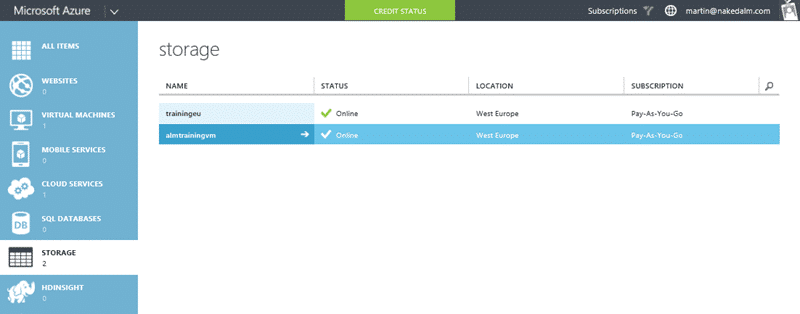
I want to move my training VM from the “trainingeu” storage account to the “almtrainingvm” one. This is really just a refactor now that I have everything working and have thought about a new home. The copy process however is a little bit convoluted, especially as both containers are marked as private.
What I really want to be able to do is just call “Copy-AzureStorageBlob -source https://trainingeu.blob.core.windows.net/vhds/bkvm-2013-3.vhd -destination https://almtrainingvm.blob.core.windows.net/vhds/bkvm-2013-3.vhd ” and be done with it. But alas… this is not to be as we need to authenticate to both storage accounts separately even though we are authenticated against the main account.
So… we need a little more PowerShell than I wanted:
Select-AzureSubscription "Pay-As-You-Go"

### Source VHD

$sourceUri = "https://trainingeu.blob.core.windows.net/vhds/bkvm-2013-3.vhd"

$sourceStorageAccount = "trainingeu"

$sourceStorageKey = "bla"

$sourceContext = New-AzureStorageContext –StorageAccountName $srcStorageAccount `

-StorageAccountKey $srcStorageKey

### Target VHD

$targetName = "bkvm-2013-3.vhd"

$targetStorageAccount = "almtrainingvm"

$targetStorageKey = "bla"

$targetContainerName = "vhds"

$targetContext = New-AzureStorageContext –StorageAccountName $targetStorageAccount `

-StorageAccountKey $targetStorageKey

$blob1 = Start-AzureStorageBlobCopy -srcUri $sourceUri -SrcContext $sourceContext -DestContainer $targetContainerName -DestBlob $targetName -DestContext $targetContext

Why we can’t do this with URL’s and an authenticated account I do not know… but this is what we got and we have to roll with it.
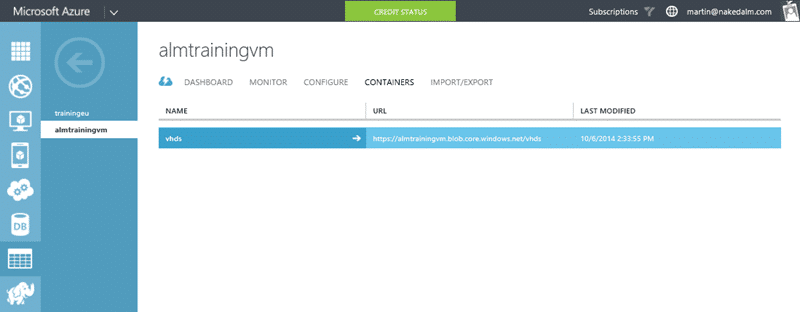
Now that I have my VHD over here I can change my default store and create my Virtual Machines from this VHD instead of the other one. Not the easiest task, but now I have some lovely PowerShell I should be able to move VHD’s between Azure Storage Accounts any time I like.
What to read next
Creating training virtual machines in Azure
Step-by-step guide to uploading, configuring, and deploying multiple training virtual machines in Azure using PowerShell, including …
Moving OneDrive for Business files to a different drive
Step-by-step guide to moving OneDrive for Business files to a different drive in Windows without re-downloading, freeing up space and …
Create a Standard Environment for Release Management in Azure
Step-by-step guide to setting up a standard Azure environment for Release Management, including VMs, storage, networking, and Application …
Managing your Azure VM's with your Phone
Control and monitor your Azure virtual machines and cloud services from your phone. Start, stop, group, and track VMs easily to save time …
Mastering Azure DevOps Migration: A Step-by-Step Guide for Seamless Project Transfers
Learn how to migrate Azure DevOps projects step by step, including tool setup, configuration, handling common issues, and ensuring a smooth …
Detecting agile theatre with real delivery signals
Why Most Companies Operating Models Fail in Dynamic Markets
A concise comparison of Predictive and Adaptive Operating Models, explaining why traditional structures fail in dynamic markets and how …
Don’t Manage Dependencies, Remove Them
Explains why dependencies are a sign of poor system design and outlines steps to eliminate them by aligning teams, clarifying ownership, and …
The Estimation Trap: How Tracking Accuracy Undermines Trust, Flow, and Value in Software Delivery
Tracking estimation accuracy in software delivery leads to mistrust, fear, and distorted behaviours. Focus on customer value, flow, and …
Flow of Value vs Flow of Work – Misnomer or Useful Shorthand?
Compares “flow of value” and “flow of work” in Kanban, explaining why only validated outcomes count as value and stressing the need for …
Why Outsourcing DevOps Fails, and How Real Engineering Excellence Starts With Your Team
Avoid DevOps vendor lock-in, discover how true engineering excellence starts with partnership, not outsourcing. Ready to transform your …