If you try to add any servers to Standard Environments in Visual Studio 2012 Lab Management you get a message that you need to enable file and printer sharing and you are unable to configure or communicate with those machines.
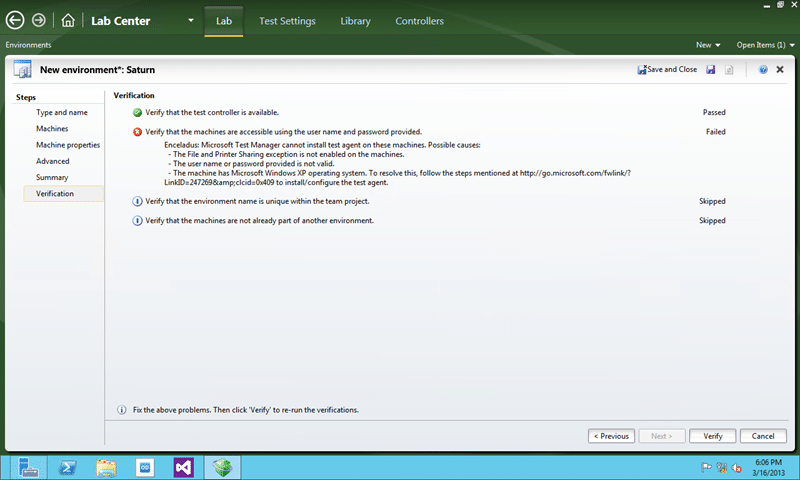
Figure: Unable to verify that machines are accessible
There are three main causes:
- The File and Printer Sharing exception is not enabled on these machines
- The username or password is not valid
- The machines have Windows XP
I know that the second two are not true so what to do now?
Applies To
- Standard Environments (Visual Studio 2012 Lab Management*)
- SCVMM Environments (Visual Studio 2012 Lab Management*)
- Physical Environments (Visual Studio 2010 Lab Management*)
- Windows Server 2012*
- Windows 8*
* this applies to all versions of Windows that you want to use with both Visual Studio 2012 and Visual Studio 2010 Lab Management features.
Findings
In order for Lab Management to successfully integrate with guest servers is used the file and print sharing ports of that machine. If they are not enabled or the ports are otherwise blocked then you will not otherwise be able to use those servers in environments. This
In both Windows 8 and Windows Server 2012 the File and Printer Sharing ports are blocked by default and you will need to open them up for this to work.
Solution for Windows 8
You need to open the ports required for File & Print Sharing. This is roughly the same for doing the same on Windows Server 2012 through the UI.
- Start | type “Fire” | click “Settings” | press “Enter” key
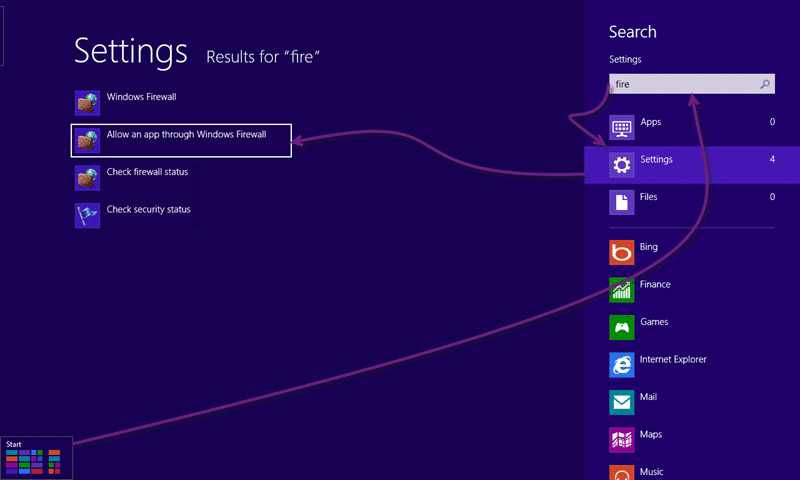 Figure: Open the Windows Firewall Settings
 - Change Settings | check “File and Printer Sharing” | OK
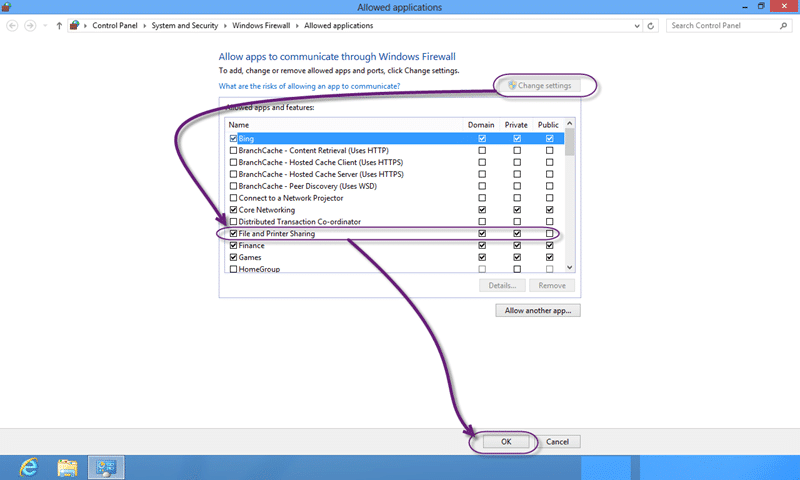 Figure: Enable File and Printer Sharing on your Windows 8 firewall
Solution for Windows Server 2012 Core
You need to open the ports required for File & Print Sharing.
powershell
netsh advfirewall firewall set rule group=”File and Printer Sharing” new enable=Yes
Figure: Enable File and Printer Sharing via the command line
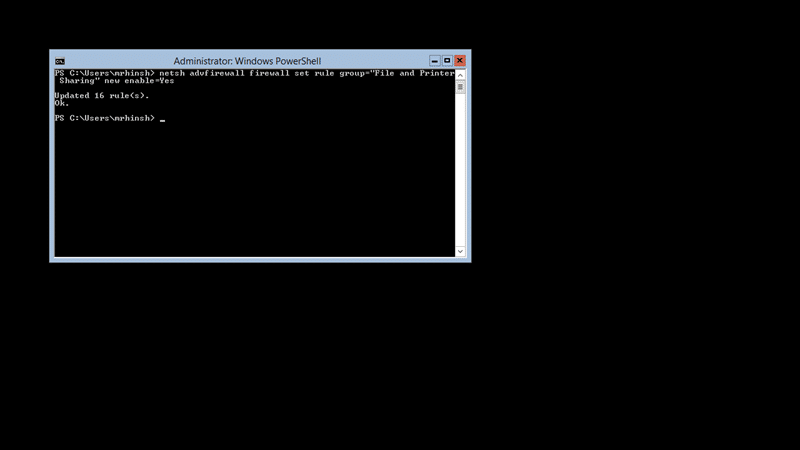
Figure: Make sure that you run this in PowerShell
Conclusion
After enabling the File and Printer Sharing firewall rules everything is now green.
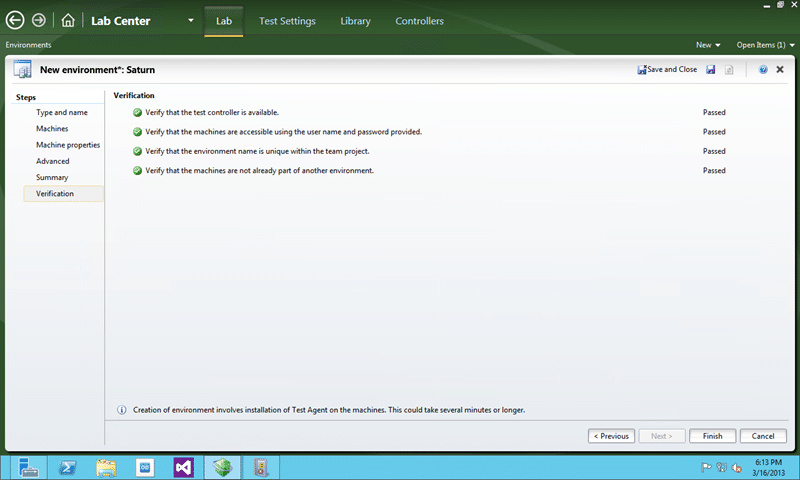
Figure: We can now verify the Standard Environment
Smart Classifications
Each classification [Concepts, Categories, & Tags] was assigned using AI-powered semantic analysis and scored across relevance, depth, and alignment. Final decisions? Still human. Always traceable. Hover to see how it applies.
What to read next
Installing TFS 2012 with Lab Management 2012
Step-by-step guide to installing and configuring TFS 2012 with Lab Management, including SQL Server, SCVMM integration, troubleshooting, and …
Connect a Test Controller to Team Foundation Service
Explains how to install and configure a Test Controller to connect with Team Foundation Service for automated deployment and testing in …
Detecting agile theatre with real delivery signals
Why Most Companies Operating Models Fail in Dynamic Markets
A concise comparison of Predictive and Adaptive Operating Models, explaining why traditional structures fail in dynamic markets and how …
Don’t Manage Dependencies, Remove Them
Explains why dependencies are a sign of poor system design and outlines steps to eliminate them by aligning teams, clarifying ownership, and …
The Estimation Trap: How Tracking Accuracy Undermines Trust, Flow, and Value in Software Delivery
Tracking estimation accuracy in software delivery leads to mistrust, fear, and distorted behaviours. Focus on customer value, flow, and …
Flow of Value vs Flow of Work – Misnomer or Useful Shorthand?
Compares “flow of value” and “flow of work” in Kanban, explaining why only validated outcomes count as value and stressing the need for …
Why Outsourcing DevOps Fails, and How Real Engineering Excellence Starts With Your Team
Avoid DevOps vendor lock-in, discover how true engineering excellence starts with partnership, not outsourcing. Ready to transform your …