There are many reasons that you would want to Create a Portfolio Backlog hierarchy in Team Foundation Server 2013 not least of which is modelling your existing processes.
You can have a hierarchy five items deep with a parent child relationship between them. You will get a backlog for each one as well as cumulative flow and a board. This is awesome as you may have, for instance, Goals that break down into Feature. These goals would be the company or product goals and the features would be those things that go to achieve them.
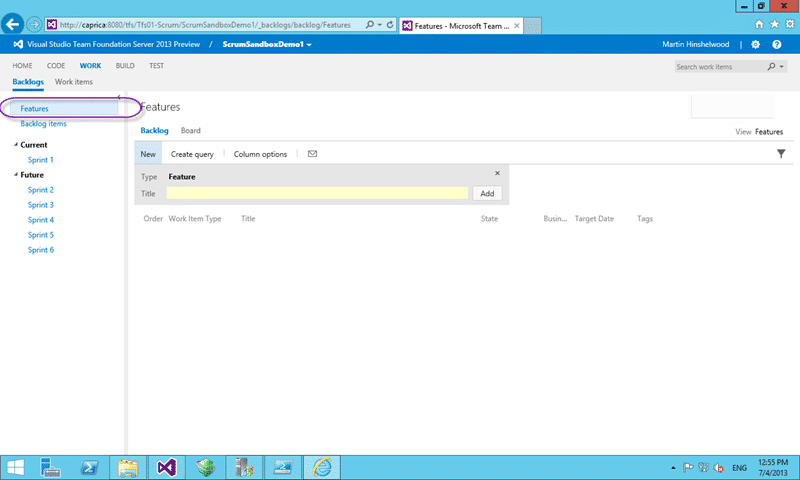
Figure: Only have Features by default
In order to add a level to the hierarchy we need to customise a Work item Type, the Work Item Categories and the Processing Configuration:
- Export all of the configuration to XML
- Create Goal work item type definition
- Update Category’s list to include new type and category
- Add new Portfolio Backlog to the Agile Portfolio Tools
- Import all of the new configuration to Team Foundation Server
These steps will allow you to create a Portfolio Backlog hierarchy in Team Foundation Server 2013.
Export all of the configuration to XML
We need access to first export as XML the configurations that we need from our Team Foundation Server:
$TeamProjectName = "ScrumSandboxDemo1"
$temp = "C:temp"
$CollectionUrl = "http://caprica:8080/tfs/tfs01-Scrum"
$WitAdmin = "${env:ProgramFiles(x86)}Microsoft Visual Studio 12.0Common7IDEwitadmin.exe"
& $WitAdmin exportwitd /collection:$CollectionUrl /p:$TeamProjectName /n:"Feature" /f:"$tempFeature.xml"
& $WitAdmin exportcategories /collection:$CollectionUrl /p:$TeamProjectName /f:$tempcategories.xml
& $WitAdmin exportprocessconfig /collection:$CollectionUrl /p:$TeamProjectName /f:$tempprocessingconfig.xml
These command will create feature.xml, catagories.xml and a processingconfig.xml files that we can edit offline and then upload into Team Foundation Server 2013 to make the changes.
Create Goal work item type definition
I am going to make things a little bit easy for me and just copy the Feature type and rename it to Goal. The simplest way to create a new work item type is to diff from an existing one and Feature has the layout that I want to start with.
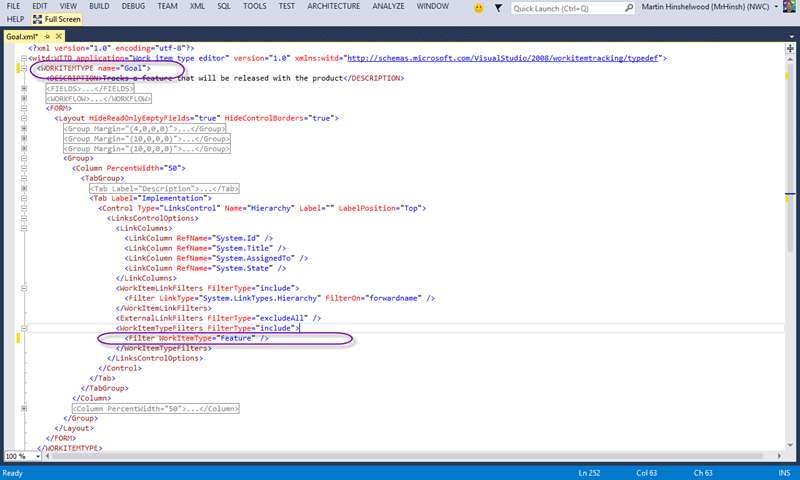
Figure: Changes to make for Goal
In order to make a new Work Item Type you need only change the name and then import the file. However there in a “Implementation” tab that shows, for Features, the child Product Backlog Items. We need to also change this to load child features instead and feature is going to the be child of Goal.
<Tab Label="Implementation">
  <Control Type="LinksControl" Name="Hierarchy" Label="" LabelPosition="Top">
    <LinksControlOptions>
      <LinkColumns>
        <LinkColumn RefName="System.Id" />
        <LinkColumn RefName="System.Title" />
        <LinkColumn RefName="System.AssignedTo" />
        <LinkColumn RefName="System.State" />
      </LinkColumns>
      <WorkItemLinkFilters FilterType="include">
        <Filter LinkType="System.LinkTypes.Hierarchy" FilterOn="forwardname" />
      </WorkItemLinkFilters>
      <ExternalLinkFilters FilterType="excludeAll" />
      <WorkItemTypeFilters FilterType="include">
        <Filter WorkItemType="Feature" />
      </WorkItemTypeFilters>
    </LinksControlOptions>
  </Control>
</Tab>
Here you can see the standard implementation tab that you find on many of the work items that come out of the box. It is basically a query box that shows whatever results that you want. Here it is filtered to “Hierarchy” link types which really just means parentchild and for a particular work item type which in this case is “Feature”.
<?xml version="1.0" encoding="utf-8"?>
<witd:WITD application="Work item type editor" version="1.0" xmlns:witd="http://schemas.microsoft.com/VisualStudio/2008/workitemtracking/typedef">
  <WORKITEMTYPE name="Goal">
    <DESCRIPTION>Tracks a Goal that will be released with the product</DESCRIPTION>
    ...
    <FORM>
      <Layout HideReadOnlyEmptyFields="true" HideControlBorders="true">
        ...
        <Group>
          <Column PercentWidth="50">
            <TabGroup>
            ...
              <Tab Label="Implementation">
                <Control Type="LinksControl" Name="Hierarchy" Label="" LabelPosition="Top">
                  <LinksControlOptions>
                    <LinkColumns>
                      <LinkColumn RefName="System.Id" />
                      <LinkColumn RefName="System.Title" />
                      <LinkColumn RefName="System.AssignedTo" />
                      <LinkColumn RefName="System.State" />
                    </LinkColumns>
                    <WorkItemLinkFilters FilterType="include">
                      <Filter LinkType="System.LinkTypes.Hierarchy" FilterOn="forwardname" />
                    </WorkItemLinkFilters>
                    <ExternalLinkFilters FilterType="excludeAll" />
                    <WorkItemTypeFilters FilterType="include">
                      <Filter WorkItemType="Feature" />
                    </WorkItemTypeFilters>
                  </LinksControlOptions>
                </Control>
              </Tab>
            </TabGroup>
          </Column>
          ...
        </Group>
      </Layout>
    </FORM>
  </WORKITEMTYPE>
</witd:WITD>
You could obviously customise this work item type to your hearts content and now we need to add it to a category.
Update Category’s list to include new type and category
To create a portfolio backlog we need a custom category so that we can use that for the portfolio backlog.
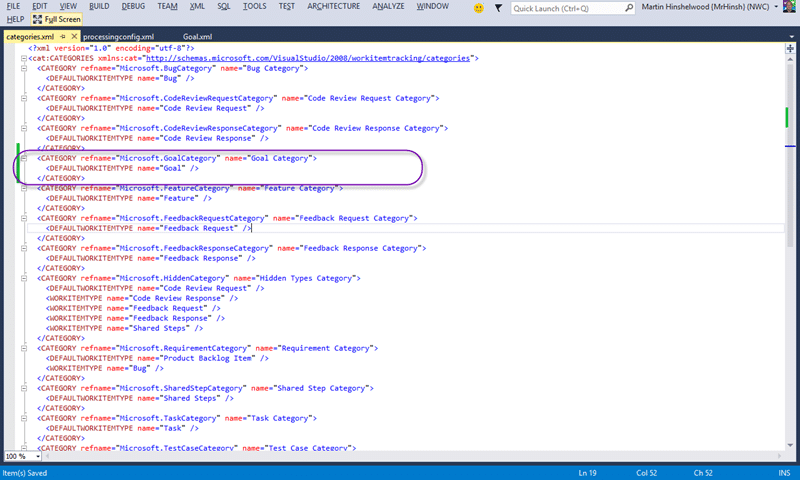
Figure: Adding a custom category for Goal
A category can have multiple Work Item Types listed but only one default. This means that you could have multiple Work Item Types for different sorts of Goals. I am however trying to keep this simple…
<CATEGORY refname="Microsoft.GoalCategory" name="Goal Category">
  <DEFAULTWORKITEMTYPE name="Goal" />
</CATEGORY>
A simple category that holds a single work item type is fairly easy to create. Just add it to the list of categories below.
<?xml version="1.0" encoding="utf-8"?>
<cat:CATEGORIES xmlns:cat="http://schemas.microsoft.com/VisualStudio/2008/workitemtracking/categories">
  <CATEGORY refname="Microsoft.BugCategory" name="Bug Category">
    <DEFAULTWORKITEMTYPE name="Bug" />
  </CATEGORY>
  <CATEGORY refname="Microsoft.CodeReviewRequestCategory" name="Code Review Request Category">
    <DEFAULTWORKITEMTYPE name="Code Review Request" />
  </CATEGORY>
  <CATEGORY refname="Microsoft.CodeReviewResponseCategory" name="Code Review Response Category">
    <DEFAULTWORKITEMTYPE name="Code Review Response" />
  </CATEGORY>
<CATEGORY refname="Microsoft.GoalCategory" name="Goal Category">
  <DEFAULTWORKITEMTYPE name="Goal" />
</CATEGORY>
  <CATEGORY refname="Microsoft.FeatureCategory" name="Feature Category">
    <DEFAULTWORKITEMTYPE name="Feature" />
  </CATEGORY>
  <CATEGORY refname="Microsoft.FeedbackRequestCategory" name="Feedback Request Category">
    <DEFAULTWORKITEMTYPE name="Feedback Request" />
  </CATEGORY>
  <CATEGORY refname="Microsoft.FeedbackResponseCategory" name="Feedback Response Category">
    <DEFAULTWORKITEMTYPE name="Feedback Response" />
  </CATEGORY>
  <CATEGORY refname="Microsoft.HiddenCategory" name="Hidden Types Category">
    <DEFAULTWORKITEMTYPE name="Code Review Request" />
    <WORKITEMTYPE name="Code Review Response" />
    <WORKITEMTYPE name="Feedback Request" />
    <WORKITEMTYPE name="Feedback Response" />
    <WORKITEMTYPE name="Shared Steps" />
  </CATEGORY>
  <CATEGORY refname="Microsoft.RequirementCategory" name="Requirement Category">
    <DEFAULTWORKITEMTYPE name="Product Backlog Item" />
    <WORKITEMTYPE name="Bug" />
  </CATEGORY>
  <CATEGORY refname="Microsoft.SharedStepCategory" name="Shared Step Category">
    <DEFAULTWORKITEMTYPE name="Shared Steps" />
  </CATEGORY>
  <CATEGORY refname="Microsoft.TaskCategory" name="Task Category">
    <DEFAULTWORKITEMTYPE name="Task" />
  </CATEGORY>
  <CATEGORY refname="Microsoft.TestCaseCategory" name="Test Case Category">
    <DEFAULTWORKITEMTYPE name="Test Case" />
  </CATEGORY>
</cat:CATEGORIES>
Once we have the new category and the new Goal work item type we are ready to use them to create the portfolio backlog.
Add new Portfolio Backlog to the Agile Portfolio Tools
There are three things that we need to do in order to create the new portfolio backlog for Goals in the Team Web Access site.
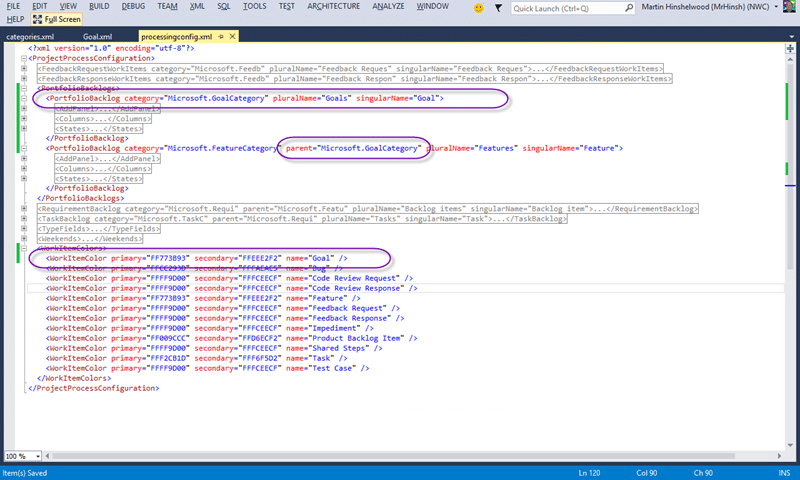
Figure: Customising the Process Configuration for Portfolio Backlogs
We need to not only add the new portfolio backlog above but also set the parent property on child portfolio backlog and optionally set a colour for our Goals cards and lists.
Because I just copied the Feature work item type for this I can just copy the Feature entry in the Portfolio Backlogs section. If you have a more customised work item type you may want to customise the States, Columns and the fields that are available in the Add Panel for that Work Item Type in the web UI. Here I am just going with the simple option of copying.
In addition I need to tell the Feature portfolio backlog that anything in the Goal category that we created is now its parent. This is done simply by adding the category to the parent attribute of the PortfolioBacklog element in question.
Note You can also check out customise the colours in Team Foundation Server 2013 Agile Planning Tools
<?xml version="1.0" encoding="utf-8"?>
<ProjectProcessConfiguration>
  ...
  <PortfolioBacklogs>
    <PortfolioBacklog category="Microsoft.GoalCategory" pluralName="Goals" singularName="Goal">
      <AddPanel>
        <Fields>
          <Field refname="System.Title" />
        </Fields>
      </AddPanel>
      <Columns>
        <Column width="100" refname="System.WorkItemType" />
        <Column width="400" refname="System.Title" />
        <Column width="100" refname="System.State" />
        <Column width="50" refname="Microsoft.VSTS.Common.BusinessValue" />
        <Column width="100" refname="Microsoft.VSTS.Scheduling.TargetDate" />
        <Column width="200" refname="System.Tags" />
      </Columns>
      <States>
        <State type="Proposed" value="New" />
        <State type="InProgress" value="In Progress" />
        <State type="Complete" value="Done" />
      </States>
    </PortfolioBacklog>
    <PortfolioBacklog category="Microsoft.FeatureCategory" parent="Microsoft.GoalCategory" pluralName="Features" singularName="Feature">
      <AddPanel>
        <Fields>
          <Field refname="System.Title" />
        </Fields>
      </AddPanel>
      <Columns>
        <Column width="100" refname="System.WorkItemType" />
        <Column width="400" refname="System.Title" />
        <Column width="100" refname="System.State" />
        <Column width="50" refname="Microsoft.VSTS.Common.BusinessValue" />
        <Column width="100" refname="Microsoft.VSTS.Scheduling.TargetDate" />
        <Column width="200" refname="System.Tags" />
      </Columns>
      <States>
        <State type="Proposed" value="New" />
        <State type="InProgress" value="In Progress" />
        <State type="Complete" value="Done" />
      </States>
    </PortfolioBacklog>
  </PortfolioBacklogs>
  ...
  <WorkItemColors>
    <WorkItemColor primary="FF2CFF07" secondary="FFACFF9E" name="Goal" />
    <WorkItemColor primary="FFCC293D" secondary="FFFAEAE5" name="Bug" />
    <WorkItemColor primary="FFFF9D00" secondary="FFFCEECF" name="Code Review Request" />
    <WorkItemColor primary="FFFF9D00" secondary="FFFCEECF" name="Code Review Response" />
    <WorkItemColor primary="FF773B93" secondary="FFEEE2F2" name="Feature" />
    <WorkItemColor primary="FFFF9D00" secondary="FFFCEECF" name="Feedback Request" />
    <WorkItemColor primary="FFFF9D00" secondary="FFFCEECF" name="Feedback Response" />
    <WorkItemColor primary="FFFF9D00" secondary="FFFCEECF" name="Impediment" />
    <WorkItemColor primary="FF009CCC" secondary="FFD6ECF2" name="Product Backlog Item" />
    <WorkItemColor primary="FFFF9D00" secondary="FFFCEECF" name="Shared Steps" />
    <WorkItemColor primary="FFF2CB1D" secondary="FFF6F5D2" name="Task" />
    <WorkItemColor primary="FFFF9D00" secondary="FFFCEECF" name="Test Case" />
  </WorkItemColors>
</ProjectProcessConfiguration>
Simples… now that we have completed all of the changes necessary we are ready for the import.
Import all of the new configuration to Team Foundation Server
This is really just the revers of the commands used to create the files in the first place.
$TeamProjectName = "ScrumSandboxDemo1"
$temp = "C:temp"
$CollectionUrl = "http://caprica:8080/tfs/tfs01-Scrum"
$WitAdmin = "${env:ProgramFiles(x86)}Microsoft Visual Studio 12.0Common7IDEwitadmin.exe"
& $WitAdmin importwitd /collection:$CollectionUrl /p:$TeamProjectName /n:"Feature" /f:"$tempGoal.xml"
& $WitAdmin importcategories /collection:$CollectionUrl /p:$TeamProjectName /f:$tempcategories.xml
& $WitAdmin importprocessconfig /collection:$CollectionUrl /p:$TeamProjectName /f:$tempprocessingconfig.xml
We just call them as “import” rather than “export” statements.
DONE
Conclusion
We now have a lovely green Goal work item type that sits on its own backlog and is ordered above Features.
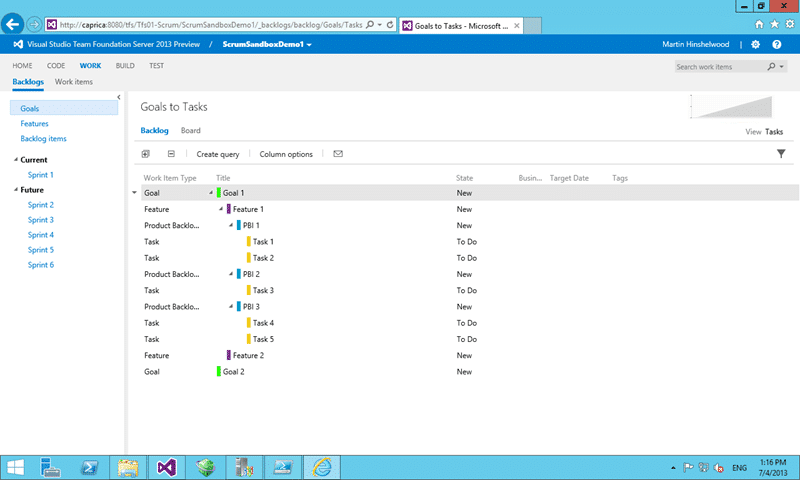
Figure: Viewing Tasks from the lofty heights of Goals
Customising the hierarchy for Portfolio Backlogs is easy and the hard part is making sure that you are making the correct change.
When you are working with any sort of work item tracking customisation in Team Foundation Server it is best to think twice and customise once.
-Me
Make sure you always make the right changes to Team Foundation Server to improve your process and never enshrine dysfunctions…
Smart Classifications
Each classification [Concepts, Categories, & Tags] was assigned using AI-powered semantic analysis and scored across relevance, depth, and alignment. Final decisions? Still human. Always traceable. Hover to see how it applies.
What to read next
One Team Project to rule them all
Explains how to manage multiple teams and projects in Team Foundation Server using a single Team Project, with tips on Agile planning, …
Teams without areas using a team field in TFS
Explains how to configure TFS to manage teams using a custom team field instead of area paths, enabling flexible team-product assignments …
Working within a single Team Project with Team Foundation Server 2012
Explains how to organise teams, products, and projects within a single Team Project in Team Foundation Server 2012, covering design, …
Process Template Upgrade #3 - Destroy all Work Items and Import new ones
Step-by-step guide to upgrading a process template in TFS by deleting all existing work items, archiving queries and reports, and importing …
Rethinking Backlog Management: Why a Flat Structure Boosts Agility and Value Delivery
Explains how using a flat backlog structure, rather than a hierarchy, improves agility, prioritisation, and value delivery in Scrum and …
Detecting agile theatre with real delivery signals
Why Most Companies Operating Models Fail in Dynamic Markets
A concise comparison of Predictive and Adaptive Operating Models, explaining why traditional structures fail in dynamic markets and how …
Don’t Manage Dependencies, Remove Them
Explains why dependencies are a sign of poor system design and outlines steps to eliminate them by aligning teams, clarifying ownership, and …
The Estimation Trap: How Tracking Accuracy Undermines Trust, Flow, and Value in Software Delivery
Tracking estimation accuracy in software delivery leads to mistrust, fear, and distorted behaviours. Focus on customer value, flow, and …
Flow of Value vs Flow of Work – Misnomer or Useful Shorthand?
Compares “flow of value” and “flow of work” in Kanban, explaining why only validated outcomes count as value and stressing the need for …
Why Outsourcing DevOps Fails, and How Real Engineering Excellence Starts With Your Team
Avoid DevOps vendor lock-in, discover how true engineering excellence starts with partnership, not outsourcing. Ready to transform your …
Why Most Companies Operating Models Fail in Dynamic Markets
A concise comparison of Predictive and Adaptive Operating Models, explaining why traditional structures fail in dynamic markets and how …
The Estimation Trap: How Tracking Accuracy Undermines Trust, Flow, and Value in Software Delivery
Tracking estimation accuracy in software delivery leads to mistrust, fear, and distorted behaviours. Focus on customer value, flow, and …
Getting Started with Objectives & Key Results
Learn how to successfully implement OKRs by aligning clear strategy, fostering transparency, empowering teams, focusing on outcomes, and …
OKR Guide - A Social Discipline for Shared Focus, Measurable Contribution, and Strategic Learning
A certification proves you’ve passed a test
Certifications show test-passing ability but don’t prove real-world product skills. Experience, judgement, and stakeholder influence matter …
Most companies still get Product Ownership wrong
Many organisations misunderstand Product Ownership, treating it as simple backlog management instead of a strategic, accountable role …