It is pretty much accepted that you should use Areas instead of having many small Team Projects when you are using Team Foundation Server 2010. I have implemented this scenario many times and this is the current iteration of layout and considerations.
I have updated this as One Team Project for Visual Studio 2012 .
If like me you work with many customers you will find that you get into a grove for how to set these things up to make them as easily understandable for everyone, while giving the best functionality. The trick is in making it as intuitive as possible for both you and the developers that need to work with it.
There are five main places where you need to have the Product or Project name in prominence of any other value.
- Area
- Iteration
- Source Code
- Work Item Queries
- Build
Once you decide how you are doing this in each of these places you need to keep to it religiously. Evan if you have one source code file to keep, make sure it is in the right place. This makes your developers and others working with the format familiar with where everything should go, as well as building up mussel memory. This prevents the neat system degenerating into a nasty mess.
Areas
Areas are traditionally used to separate out parts of your product / project so that you can see how much effort has gone into each.

Figure: The top level areas are for reporting and work item separation
There are massive advantages of using this method. You can:
- move work from one project to another
- rename a project / product
It is far more likely that a project or product gets renamed than a department.
Tip: If you have many projects, over 100, you should consider categorising them here, but make sure that the actual project name always sits at the same level so you know which is which.
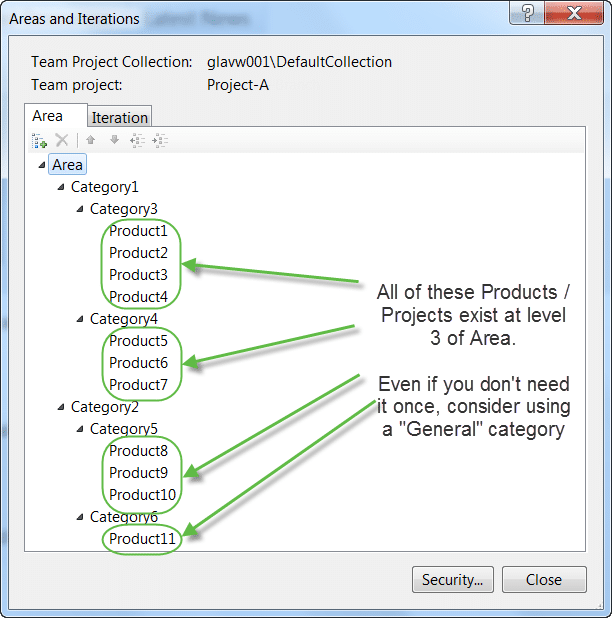
Figure: Always keep things that are the same at the same level
Note: You may use these categories only at the Area/Iteration level to make it easier to select on drop down lists. You may not want to use them everywhere. On the other hand, for consistency it would be better to.
Iterations
Iterations are usually used to some sort of time based consideration. Here I am splitting into Iterations with periodic releases.
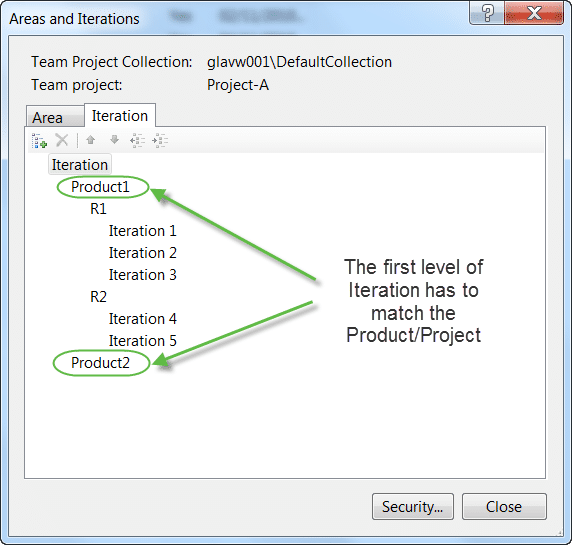
Figure: Each product needs to be able to have its own cadence
The ability to have each project run at its own pace and to enable them to have their own release schedule is often of paramount importance and you don’t want to fix your 100+ projects to all be released on the same date.
Source Code
Having a good structure for your source even if you are not branching or having multiple products under the same structure is always a good idea.
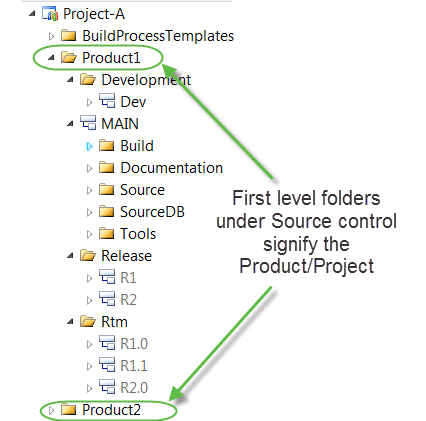
Figure: Separate out your products source
You need to think about both your branches as well as the structure of your source. All your code should be under “Source” and everything you need to build your solution including Build Scripts and 3rd party tools should be under your “Main” (branch) folder. This should them be branched by “Quality”, “Release” or both to get the most out of your branching structure.
The important thing is to make sure you branch (or be able to branch) everything you need to build, test and deploy your application to an environment. That environment may be development, test or even production, but I can’t stress the importance of having everything your need.
Note: You usually will not be able to install custom software on your build server. Store any *.dll’s or *.exe’s that you need under the “ToolsTool1” folder.
Note: Consult the Branching Guidance for Team Foundation Server 2010 for more on branching
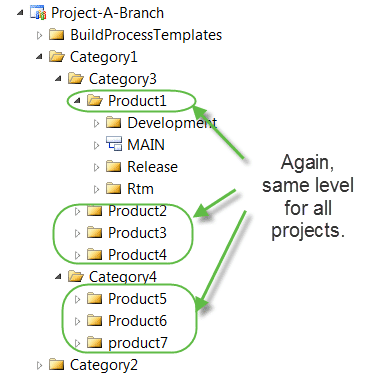
Figure: Adding category may be a necessary evil
Even if you have to have a couple of categories called “Default”, it is better than not knowing the difference between a folder, Product and Branch.
Work Item Queries
Queries are used to load lists of Work Items out of TFS so you can see what work you have. This means that you want to also separate queries out by Product / project to make it easier to find the correct data for a particular product.
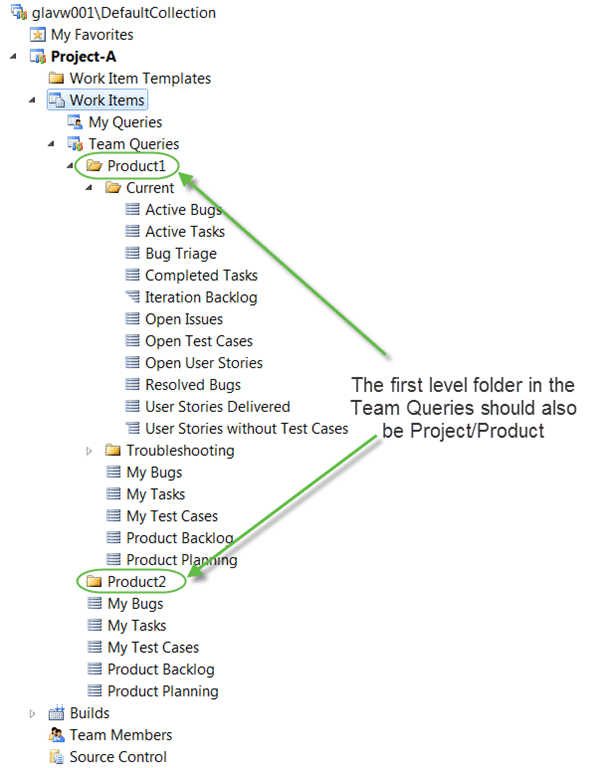
Figure: Again you have the same first level structure
Having Folders also in Work Item Tracking we do the same thing. We put all the queries under a folder named for the Product / Project and change each query to have “AreaPath=[TeamProject][ProductX]” in the query instead of the standard “Project=@Project”.
Tip: Don’t have a folder with new queries for each iteration. Instead have a single “Current” folder that has queries that point to the current iteration. Just change the queries as you move from one iteration to another.
Tip: You can ctrl+drag the “Product1” folder to create your “Product2” folder.
Builds
You may have many builds both for individual products but also for different quality’s. This can be further complicated by having some builds that action “Gated Check-In” and others that are specifically for “Release”, “Test” or another purpose.
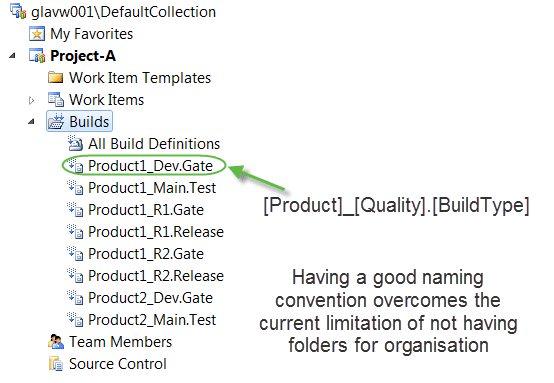
Figure: There are no folders, yet, for the builds so you need a good naming convention
Its a pity that there are no folders under builds, some way to categorise would be nice. In lue of that at the moment you can use a functional naming convention that at least allows you to find what you want.
Conclusion
It is really easy to both achieve and to stick to this format if you take the time to do it. Unless you have 1000+ builds or 100+ Products you are unlikely
run into any issues. Even then there are things you can do to mitigate the issues and I have describes some of them above.
Let me know if you can think of any other things to make this easier.
Smart Classifications
Each classification [Concepts, Categories, & Tags] was assigned using AI-powered semantic analysis and scored across relevance, depth, and alignment. Final decisions? Still human. Always traceable. Hover to see how it applies.
What to read next
Guidance: How to layout you files for an Ideal Solution
Learn best practices for organising solution and project files in version control, including folder structure, naming conventions, and …
Working within a single Team Project with Team Foundation Server 2012
Explains how to organise teams, products, and projects within a single Team Project in Team Foundation Server 2012, covering design, …
When should I use Areas in TFS instead of Team Projects in Team Foundation Server 2010
Explains when to use Areas versus Team Projects in TFS 2010, comparing benefits, drawbacks, and best practices for managing multiple …
TFS for cross team and cross business line work item tracking
Explains how to use a single Team Project and Team Field in TFS to streamline cross-team work item tracking, reporting, and collaboration …
One Team Project to rule them all
Explains how to manage multiple teams and projects in Team Foundation Server using a single Team Project, with tips on Agile planning, …
Mastering Azure DevOps: Avoiding Common Pitfalls for Agile Success
Learn how to avoid common mistakes in Azure DevOps, improve agile workflows, maintain traceability, and simplify processes for better team …
Detecting agile theatre with real delivery signals
Why Most Companies Operating Models Fail in Dynamic Markets
A concise comparison of Predictive and Adaptive Operating Models, explaining why traditional structures fail in dynamic markets and how …
Don’t Manage Dependencies, Remove Them
Explains why dependencies are a sign of poor system design and outlines steps to eliminate them by aligning teams, clarifying ownership, and …
The Estimation Trap: How Tracking Accuracy Undermines Trust, Flow, and Value in Software Delivery
Tracking estimation accuracy in software delivery leads to mistrust, fear, and distorted behaviours. Focus on customer value, flow, and …
Flow of Value vs Flow of Work – Misnomer or Useful Shorthand?
Compares “flow of value” and “flow of work” in Kanban, explaining why only validated outcomes count as value and stressing the need for …
Why Outsourcing DevOps Fails, and How Real Engineering Excellence Starts With Your Team
Avoid DevOps vendor lock-in, discover how true engineering excellence starts with partnership, not outsourcing. Ready to transform your …
Detecting agile theatre with real delivery signals
Don’t Manage Dependencies, Remove Them
Explains why dependencies are a sign of poor system design and outlines steps to eliminate them by aligning teams, clarifying ownership, and …
The Estimation Trap: How Tracking Accuracy Undermines Trust, Flow, and Value in Software Delivery
Tracking estimation accuracy in software delivery leads to mistrust, fear, and distorted behaviours. Focus on customer value, flow, and …
Flow of Value vs Flow of Work – Misnomer or Useful Shorthand?
Compares “flow of value” and “flow of work” in Kanban, explaining why only validated outcomes count as value and stressing the need for …
Why Outsourcing DevOps Fails, and How Real Engineering Excellence Starts With Your Team
Avoid DevOps vendor lock-in, discover how true engineering excellence starts with partnership, not outsourcing. Ready to transform your …
Estimating Better in an Overloaded System Is a Poor Man’s Strategy
High work in progress (WIP) causes delays and unpredictability; improving estimates won’t help. Limiting WIP and focusing on flow is key to …