I was a little lazy last time and did not install either Team Explorer, or SP1 on my visual studio instance. So, lets get to it…
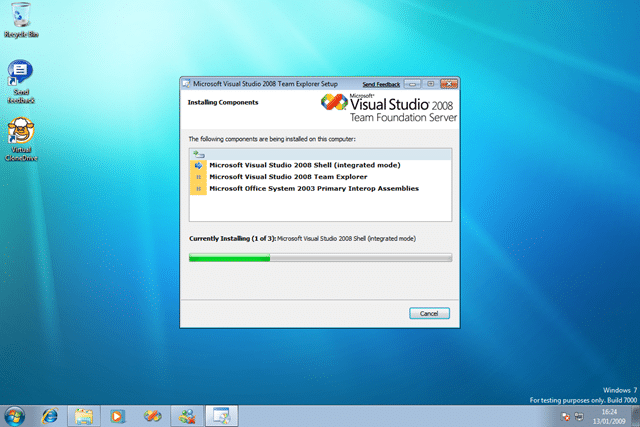
Everything fine with the Team Explorer install so far, but I have seen other people with this working as well. The fun seams to start when you get SP1 out of the bag, so we will start by Connecting to CodePlex , and using TFS Sticky Buddy …
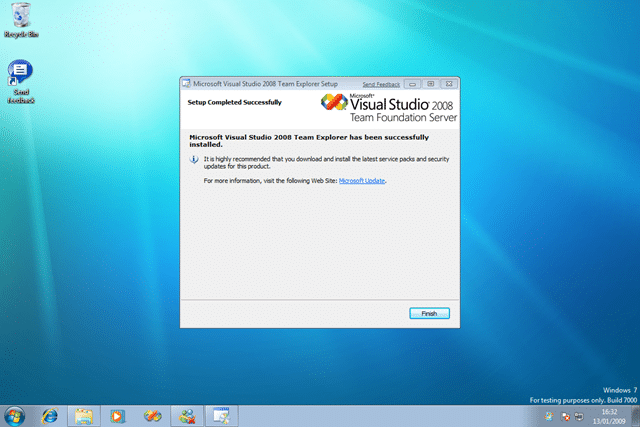
Yea baby!
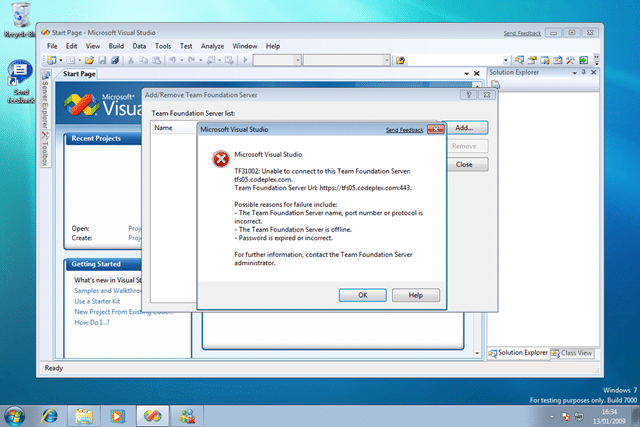
Well it looks like I have been hampered by my proxy server at work… no way round that one… I can get web pages, but application can’t connect…
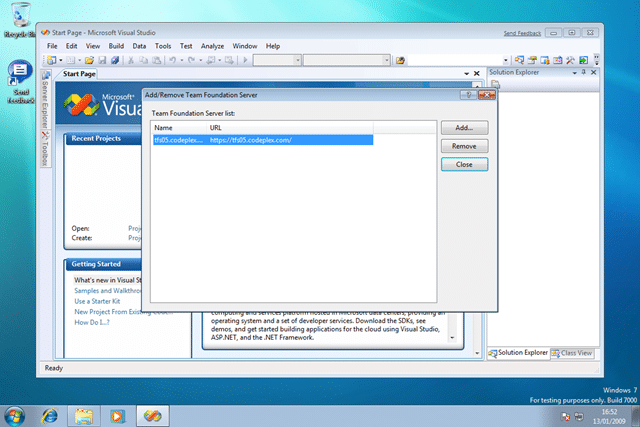
And, not a proxy issue after all, but a firewall issue! Still can’t get the “Send Feedback” to sign in… now that is probably a proxy/websence issue…
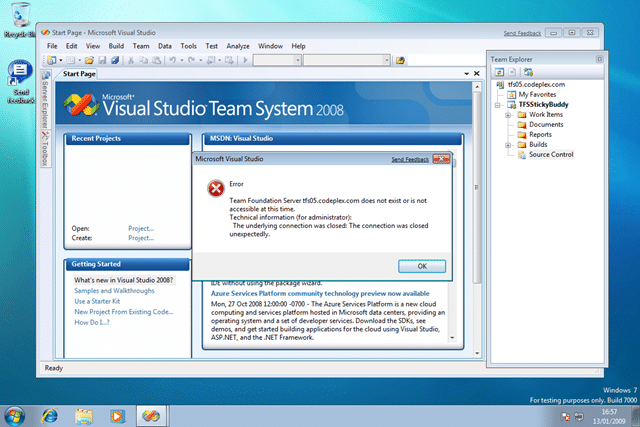
This is a new one on me, and I needed to threaten Visual Studio with the “End Task” button to get it to respond… Maybe I need SP1 on Windows 7?
Tune in next time for some SP1 antics…
P.S. TFS Sticky Buddy works, but I think I am going to need a blue theme…
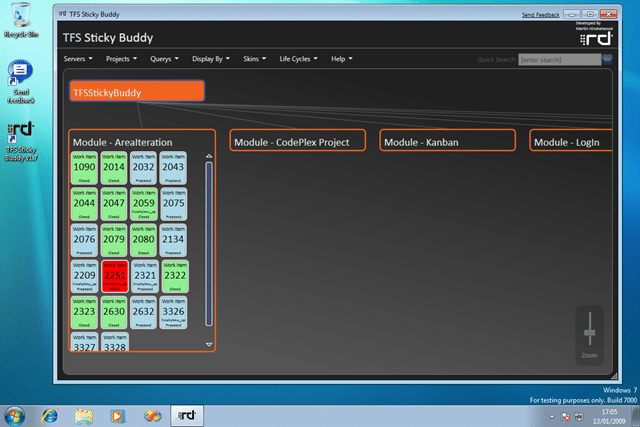
Ewww, and check out that nasty logo…

Technorati Tags: ALM Personal Windows TFS
Smart Classifications
Each classification [Concepts, Categories, & Tags] was assigned using AI-powered semantic analysis and scored across relevance, depth, and alignment. Final decisions? Still human. Always traceable. Hover to see how it applies.
What to read next
Detecting agile theatre with real delivery signals
Why Most Companies Operating Models Fail in Dynamic Markets
A concise comparison of Predictive and Adaptive Operating Models, explaining why traditional structures fail in dynamic markets and how …
Don’t Manage Dependencies, Remove Them
Explains why dependencies are a sign of poor system design and outlines steps to eliminate them by aligning teams, clarifying ownership, and …
The Estimation Trap: How Tracking Accuracy Undermines Trust, Flow, and Value in Software Delivery
Tracking estimation accuracy in software delivery leads to mistrust, fear, and distorted behaviours. Focus on customer value, flow, and …
Flow of Value vs Flow of Work – Misnomer or Useful Shorthand?
Compares “flow of value” and “flow of work” in Kanban, explaining why only validated outcomes count as value and stressing the need for …
Why Outsourcing DevOps Fails, and How Real Engineering Excellence Starts With Your Team
Avoid DevOps vendor lock-in, discover how true engineering excellence starts with partnership, not outsourcing. Ready to transform your …