I am having occasion to rebuild my Microsoft Office SharePoint Server (MOSS) development server. In fact, I killed it by adding a Business Data Catalog (BDC) that pointed to a table that had just over a million rows… Now, maybe this would not have caused a problem if I was not using a single server deployment with SQL server on the same box…
That’s the way the OS crumbles 
Anyway, I am installing from a blank VM helpfully provided by our Infrastructure team. The plan is to install all updates before installing MOSS, this includes .NET 3.5 as some of the applications I will be putting on the server will be using it.
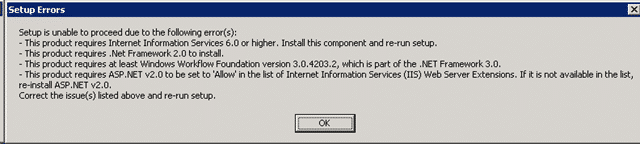
If you just try and run the MOSS install you get a nice little message detailing what you need to install as pre-requisites. I have my .NET 3.5 install running, so that should take care of all but IIS…
Install SQL
You will need SQL Server installed. As this is a development box and I don’t have any licensing consideration for development environments under our enterprise agreement I am using “Developer Edition” which is identical to “Enterprise Edition” of SQL Server. And I am not using a default instance. I will soon be in the possession of a SQL Server 2005 Cluster and all of my systems. SharePoint and TFS will have their databases moved onto that server.
Now, due to the security requirements of these systems (TFS required DBO and SharePoint required DBCreator) Each one will have its own instance.
TFS is easy enough to move between servers, but SharePoint is NOT. It would require a full backup (from within SharePoint) and restore to move the databases. But I have a plan.. the The SharePoint Plan: Database move headache mitigation , but I have know idea wither it will work.
Anyway, since my SQL Server install is finished…back to the SharePoint install..
Install Microsoft Office SharePoint Server Enterprise Edition
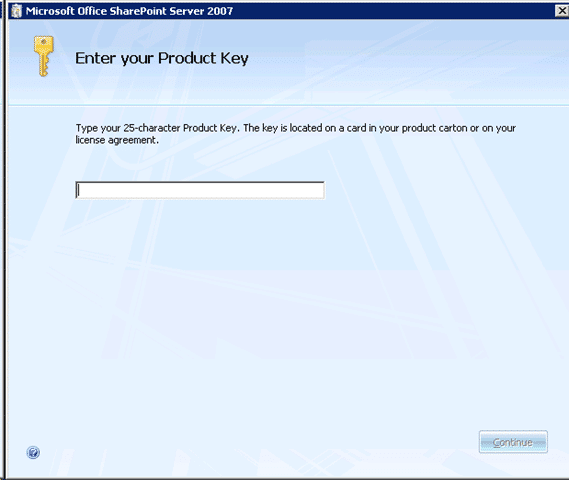
Make sure that you keep your product key safe, as I have lost mine again… 
Thank goodness for MSDN…

At the end of the install you get prompted to open the Configuration pages. Well, I’m not.. I am going to get a “VM Snapshot” taken of the server at this point. That should allow me to get back to this point at any time…
As Service Pack 1 is now available for SharePoint I want to start with SP1. So the next step is to install WSS 3.0 SP1 and then MOS SP1.
Installing Windows SharePoint Services 3.0 Service Pack 1
Hopefully if I install SP1 at this time I will not run into all the problems I (and a lot of other people) had last time .
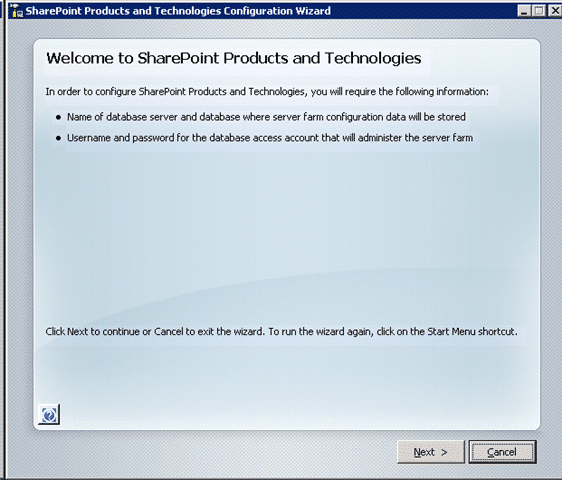
Aw, crap.. Running the install automatically ran the Configuration Wizard, which I did not want to do at this time. Well looks like I have to..
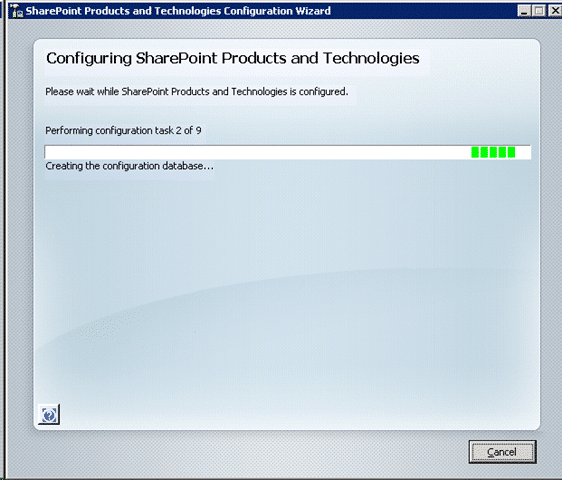
All is good for the new Database setup and it seams to be running through the tasks of pointing the SharePoint installation at the DNS database name. I really do hope that it allows me to change the database location without messing around with SharePoint backups.
And that’s the WSS 3.0 SP1 update on successfully, and with no errors…
Installing Microsoft Office System Server Service Pack 1
OK, I now have high hopes for this installation as well. After the last one, there does seam to be a likelihood that this will work…
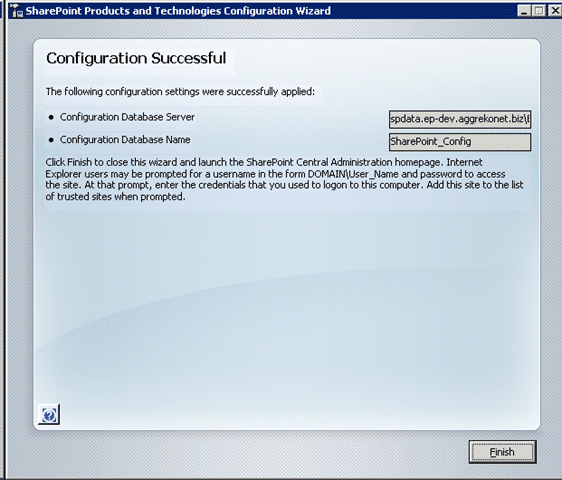
Success…Ran though fine…
Well that’s it all installed, just waiting for my SPN’s so I can start adding sites 
Technorati Tags: SP 2007 MOSS SP 2010 SharePoint
Smart Classifications
Each classification [Concepts, Categories, & Tags] was assigned using AI-powered semantic analysis and scored across relevance, depth, and alignment. Final decisions? Still human. Always traceable. Hover to see how it applies.
What to read next
Major deadline
A critical SharePoint migration project faces urgent deadlines after performance issues, requiring rapid deployment of a new MOSS portal to …
Install of TFS 2013.3 with SharePoint 2013 on Windows Server 2012 R2 Update 1
Step-by-step guide to installing TFS 2013.3 with SharePoint 2013 on Windows Server 2012 R2, covering prerequisites, configuration, …
Detecting agile theatre with real delivery signals
Why Most Companies Operating Models Fail in Dynamic Markets
A concise comparison of Predictive and Adaptive Operating Models, explaining why traditional structures fail in dynamic markets and how …
Don’t Manage Dependencies, Remove Them
Explains why dependencies are a sign of poor system design and outlines steps to eliminate them by aligning teams, clarifying ownership, and …
The Estimation Trap: How Tracking Accuracy Undermines Trust, Flow, and Value in Software Delivery
Tracking estimation accuracy in software delivery leads to mistrust, fear, and distorted behaviours. Focus on customer value, flow, and …
Flow of Value vs Flow of Work – Misnomer or Useful Shorthand?
Compares “flow of value” and “flow of work” in Kanban, explaining why only validated outcomes count as value and stressing the need for …
Why Outsourcing DevOps Fails, and How Real Engineering Excellence Starts With Your Team
Avoid DevOps vendor lock-in, discover how true engineering excellence starts with partnership, not outsourcing. Ready to transform your …